
Threat Intelligence
How to use the IOC database, look up indicators, sync threat feeds, and pivot from alerts into threat actor research.
Threat Intelligence
The Threat Intel page lets you store known-bad indicators, look up suspicious values against your database and external feeds, and sync curated threat feeds automatically. This page walks you through every workflow.
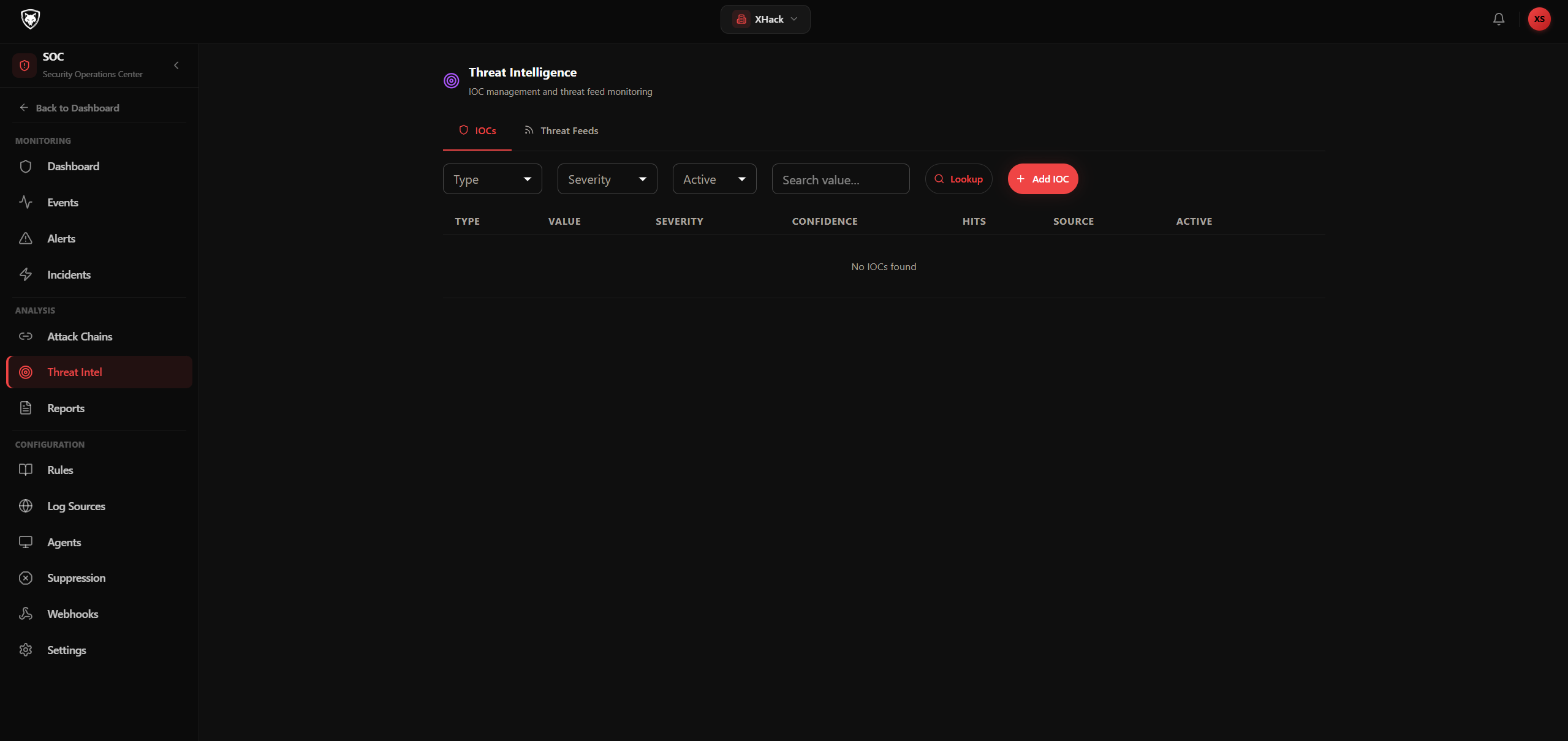
Step 1 — Open the Threat Intel page
Click SOC → Threat Intel in the sidebar. The page has two tabs:
- IOCs — your indicators of compromise database
- Threat Feeds — external feeds you've subscribed to
Step 2 — Add an IOC manually
The IOCs tab is where your tenant's known-bad list lives.
- Click Add IOC (top right of the IOCs tab).
- In the Add IOC dialog:
- IOC Type — pick from
ip,domain,url,hash_md5,hash_sha1,hash_sha256,email,cve,user_agent,asn,cidr - Value — the actual indicator, e.g.
185.220.101.5orevil-domain.example - Description — optional context, e.g. "Tor exit node observed in 2025-Q1 phishing campaign"
- Severity —
critical,high,medium,low,info - Confidence % — your confidence the IOC is genuinely malicious (0-100)
- IOC Type — pick from
- Click Add IOC.
The IOC is added to your database and starts being matched against incoming SOC events automatically.
Step 3 — Look up an indicator
When you see a suspicious IP, domain, or hash in an alert, look it up:
- Click Lookup (top right of the IOCs tab).
- In the IOC Lookup dialog:
- Pick the Type —
ip,domain,url,hash_md5,hash_sha1,hash_sha256,email,cve - Enter the Value
- Pick the Type —
- Click Lookup (or just press Enter).
- The result appears below:
- THREAT MATCH — X IOC(s) in red if the indicator is in your database
- No match found in green if it's clean
If matched, the result shows the IOC value, description, confidence %, and how many times it's been seen (hits).
Step 4 — Filter and search the IOC database
The IOC list has filters at the top:
- Type —
Allor any of the 11 IOC types - Severity —
All,critical,high,medium,low,info - Active —
Any,Active,Inactive - Search — text search by value
The table columns are: Type, Value (with tooltip for long values), Severity, Confidence %, Hits, Source (where it came from), Active state.
To delete an IOC, click the Delete action on its row.
Step 5 — Sync threat feeds
The Threat Feeds tab shows external feeds your tenant subscribes to. Each row is a curated source that auto-imports IOCs into your database.
The columns are:
- Name — feed name
- Type — feed format
- IOCs — total indicators imported
- Last Synced — when the most recent sync ran
- Status —
Active,Disabled, orX errors - Actions — Sync button to trigger a manual sync
Click Sync on any feed to pull the latest IOCs immediately. Most feeds also auto-sync on a schedule, so manual syncing is only needed when you want fresh data right now.
Step 6 — Pivot from an alert
The most common use of Threat Intel is reactive. You see a suspicious IP in a SOC alert and want to know if it's known-bad.
- Open SOC → Alerts and click into any alert that has a
source_ipfield. - Click the IP Lookup button in the alert detail dialog.
- The result tells you immediately whether your IOC database (or any synced threat feed) has flagged this IP.
If matched, you have a strong signal to escalate the alert to an incident.
Tips and best practices
- Set high confidence on IOCs you've personally verified. Save 100 for indicators you've proven malicious yourself; use 70-80 for vendor reports; use 50 for community-sourced data.
- Use Active = false to retire IOCs without deleting them. Old IOCs from past campaigns shouldn't trigger today's alerts but you might want them for forensics later.
- Sync feeds daily, not hourly. Most curated feeds update once a day. Manual syncing more often wastes API quota and doesn't surface fresh data.
- Pivot from alerts, not the dashboard. Threat Intel lookups are most valuable when triggered by an actual alert. Use the IP Lookup button on alert details — don't paste IPs from logs you found by hand.
- Track hits. A high-hit IOC is a useful signal — it tells you which indicators are actively being seen in your environment, and which ones are dormant.
- Add context to the description. "Tor exit node from Q1 phishing campaign" tells your future self why the IOC exists. "bad ip" does not.
Privacy
IOCs, threat feeds, and lookup results are scoped to your tenant. Threat feed credentials (API tokens) are Fernet-encrypted at rest. The lookup function only checks your own IOC database and any feeds you've configured — it does not send queries to third-party services unless you've explicitly subscribed to one.
Related
Try XHack AI Now
Experience the full power of XHack directly in your browser. No installation required.
Launch XHack AI