
Identity Verification (Companies)
Complete guide to identity and business verification for company accounts — the owner's ID, registered entity details, KYB documents, and how workspace verification passes to the team you invite.
Identity Verification for Companies
Every XHack account is verified before it can be used. This guide covers the company / organisation path. Registering as an individual instead? See Identity Verification (Researchers) — that wizard asks for professional credentials rather than entity details.
Verification takes about ten minutes. Review is usually decided within one business day.
What is different about a company account
A researcher account is approved on the expertise of one person. A company account is approved as an entity, and that distinction drives everything below.
The reason is inheritance. Once your organisation is verified, colleagues you invite can be covered by that verification instead of each submitting their own documents. Approving an organisation on the strength of one director's passport would extend that trust to a workspace nobody had actually checked — so the company itself has to be identifiable on a public register.
In practice:
| Researcher | Company | |
|---|---|---|
| Owner's government ID (both sides) | Required | Required |
| Professional certification or diploma | Required | Optional |
| Registered entity details | Not asked | Required |
| Business documents (incorporation, tax, address) | Not asked | Recommended, not blocking |
| Optional | Optional |
Why XHack verifies identity
XHack hands out real offensive capability — an agent that runs with root privileges on your machines, vulnerability scanning, exploit generation, and adversarial probing of live systems. We confirm who is holding it before we hand it over.
- Verification happens before payment. You are never charged during this process. If we cannot approve the company, there is nothing to refund.
- Documents are encrypted before storage with AES-256-GCM, reachable only through a single audited endpoint, with every reviewer access logged.
Before you start
Have these to hand:
| What | Notes |
|---|---|
| Owner's government ID or passport | Both sides, as two separate images |
| Registered legal entity name | Exactly as filed — not the trading name |
| Company registration number | As listed in the company's home register |
| Country of incorporation | Decides which register we check |
| Certificate of incorporation | Recommended |
| Tax / VAT registration | Recommended |
| Proof of business address | Recommended — under three months old |
File requirements: PNG, JPEG or PDF, maximum 5 MB per file.
You must confirm your email address before the wizard appears.
Step 1 — Prove the owner's identity
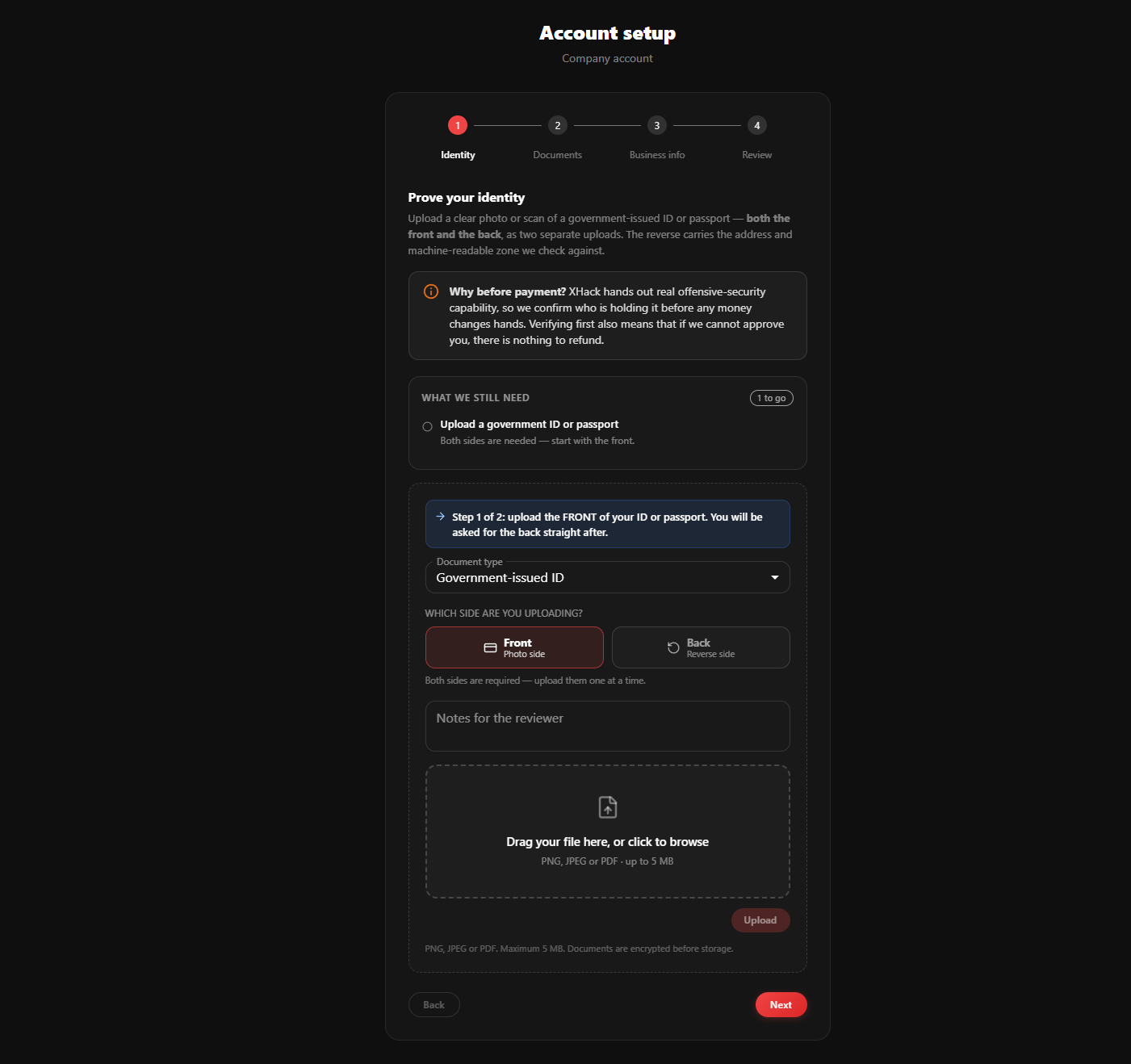
Identical to the researcher flow. The person setting the organisation up uploads a government-issued ID or passport — both sides, as two separate uploads.
- Choose Document type — Government-issued ID or Passport.
- Front is preselected. Drag the file into the drop zone or click to browse.
- The upload starts as soon as the file is accepted; the form then switches itself to Back, and the Front button turns green with an Uploaded label.
- Upload the reverse. The panel confirms "Both sides received."
The reverse is not optional — it carries the address and machine-readable zone we check against.
Getting a usable photo: all four corners in frame, no glare across the MRZ, in focus, the original document rather than a photocopy or a screen, and nothing redacted. The document must be valid on the day you submit.
Use Notes for the reviewer to explain anything unusual — a director whose ID name differs from the register entry, for example.
Step 2 — Business documents
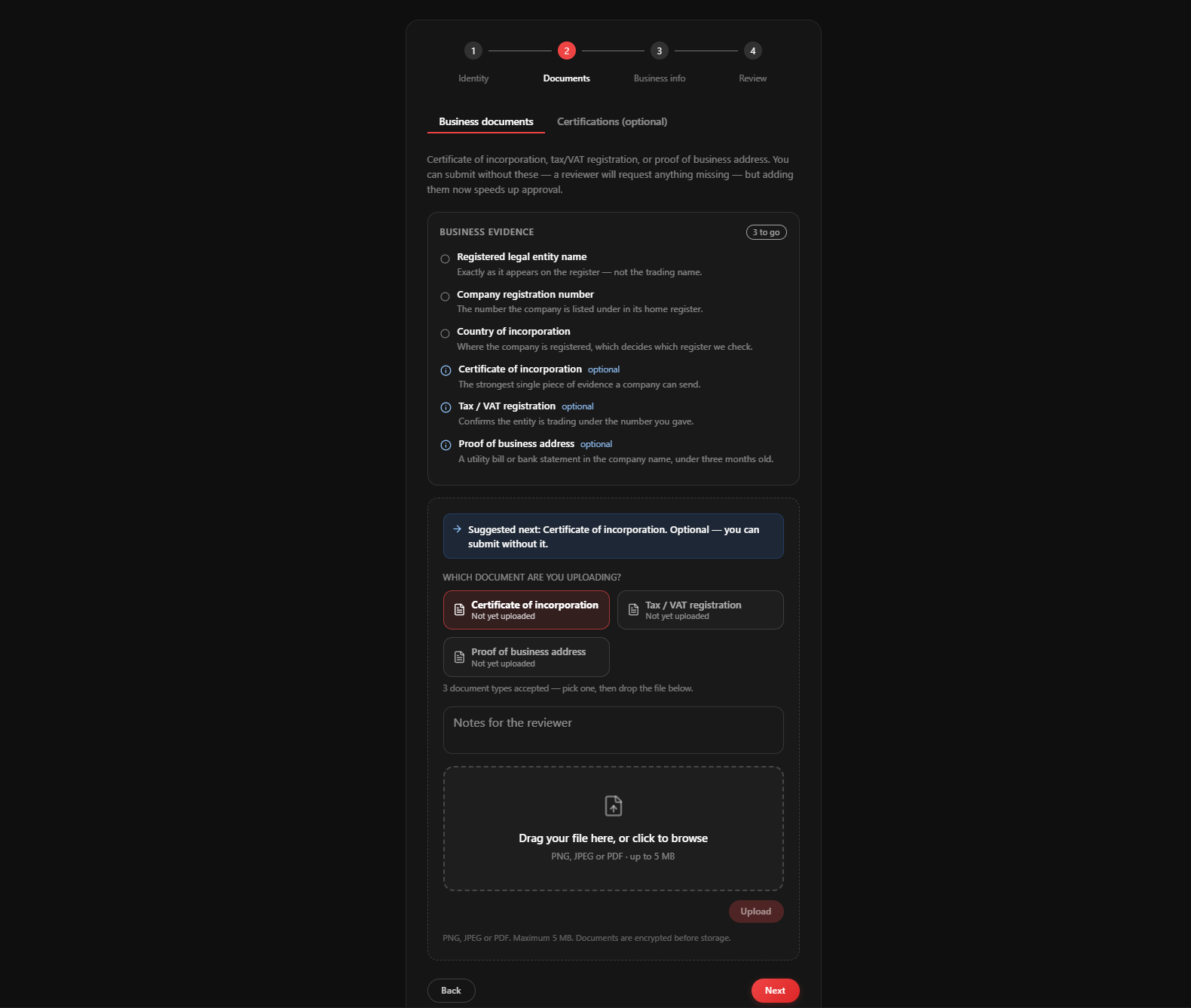
This step has two tabs: Business documents and Certifications (optional).
Business documents
Three document types are offered as buttons, each showing whether you have already uploaded it:
- Certificate of incorporation — the strongest single piece of evidence a company can send
- Tax / VAT registration — confirms the entity is trading under the number you gave
- Proof of business address — a utility bill or bank statement in the company name, under three months old
None of these block submission. You can submit without them and a reviewer will request whatever they need. Attaching them up front simply avoids a round-trip and usually turns a two-day review into a same-day one.
Pick a type, drop the file, and it uploads immediately. The picker then advances to the next document you have not yet supplied, and the counter below reads "1 of 3 uploaded" so you can see what is left at a glance.
Certifications tab
Optional for a company. If the account owner holds security certifications — OSCP, CISSP, CEH — you can attach them here, with a credential name, issuing body and public verification link. It is useful context for a reviewer but plays no part in whether the company is approved.
Step 3 — Business information
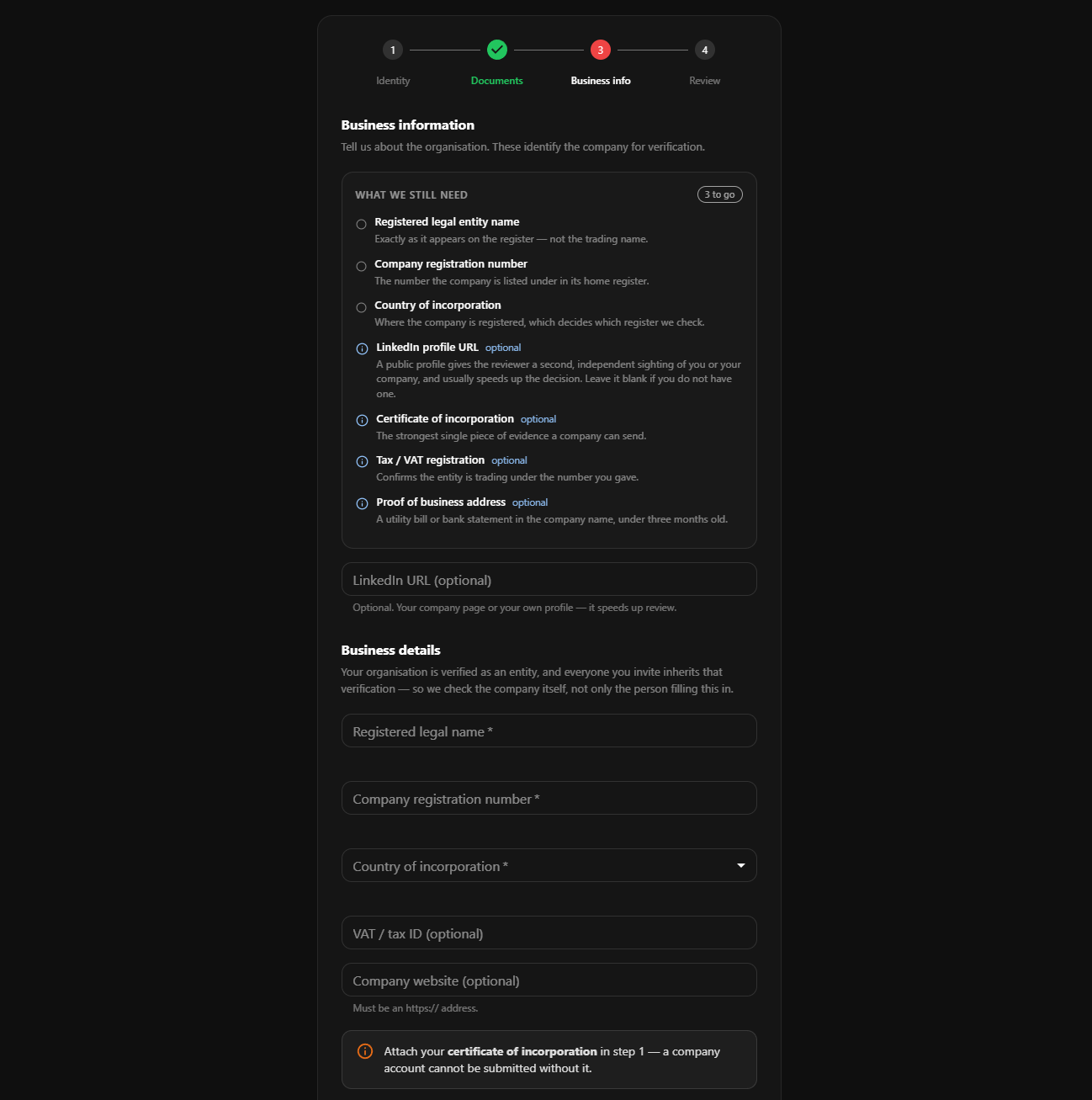
These are the fields that do block submission. They are a few keystrokes rather than paperwork, and they are what a reviewer uses to look your company up.
- Registered legal name — exactly as it appears on the register, including the suffix (
Ltd,GmbH,Pty Ltd). Not the trading or brand name. If you trade as "XHack" but are registered as "XHack Security Solutions Ltd", enter the latter. - Company registration number — the number the company is listed under in its home register: Companies House number in the UK, EIN or state file number in the US, and so on.
- Country of incorporation — where the company is registered, which decides which register we check. This is not necessarily where you operate.
Two further fields are optional but helpful:
- Tax ID / VAT number
- Business website
A LinkedIn URL is also optional here. If supplied it must be a genuine LinkedIn profile or company page — other URLs are refused by design, since an open URL field would let an applicant park an arbitrary link in front of a reviewer about to click it.
Each required field turns red with the reason underneath if you try to submit without it. Nothing is red before you have attempted to submit — the form does not scold you for not having started.
Step 4 — Review and submit
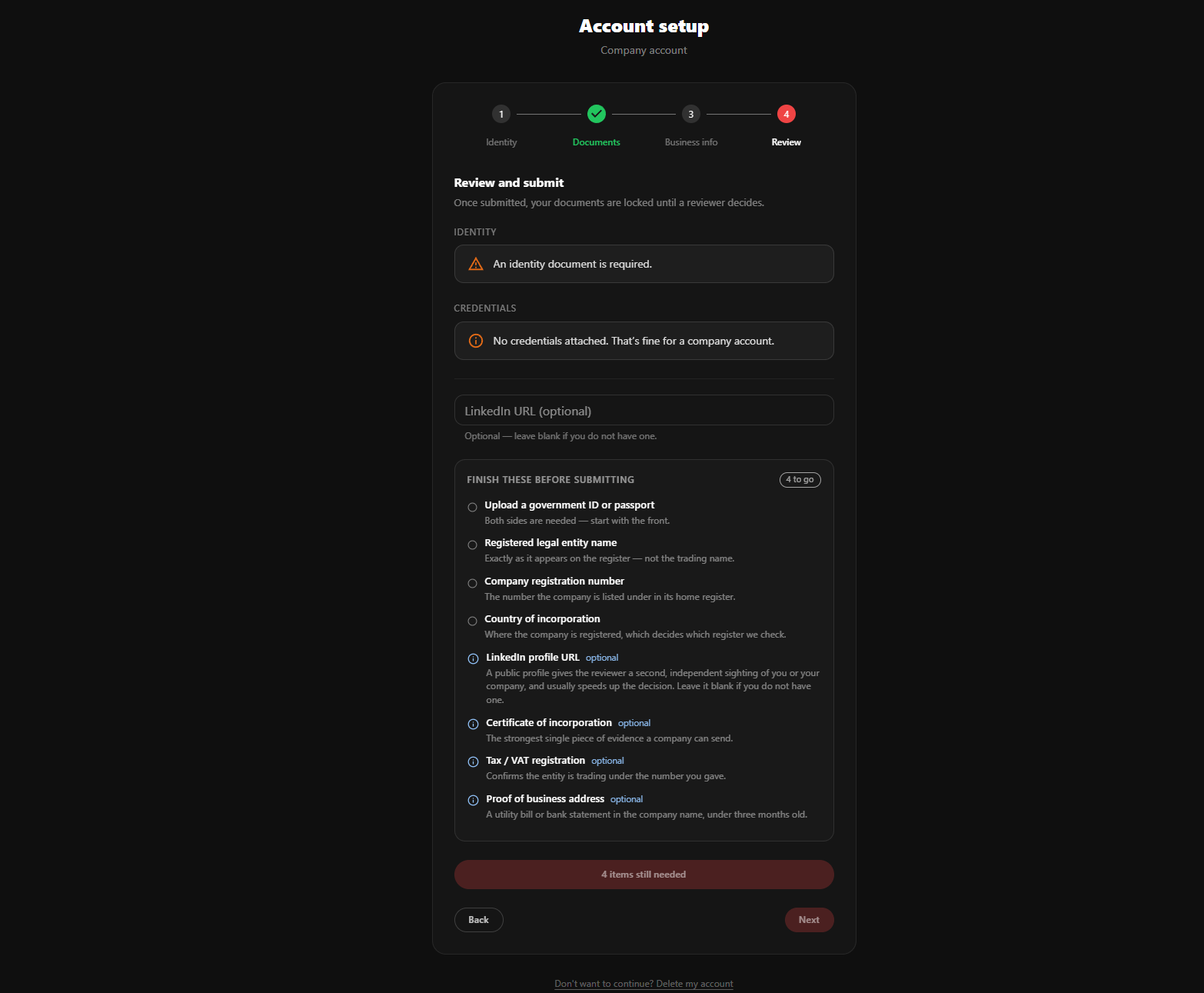
The final step summarises what you have attached and lists anything outstanding under Finish these before submitting. Required items are separated from optional ones — a missing certificate of incorporation is shown as a nudge, a missing registration number as a wall.
The submit button stays disabled while required items are missing and says how many, rather than greying out silently.
To be submittable, a company account needs:
- Front and back of the owner's government ID or passport
- Registered legal entity name
- Company registration number
- Country of incorporation
Click Submit for review when the checklist is clear.
What happens next
Your submission is locked once sent — documents cannot be added, removed or swapped while a reviewer is looking at them. If you spot a mistake immediately after submitting, contact support rather than waiting for a rejection.
You will receive an email when the decision is made.
After approval
Approval unlocks the rest of onboarding: choose a plan, complete payment, and create your workspace.
Verification inheritance
This is the payoff for verifying as an entity. Colleagues you invite into the workspace are covered by the organisation's verification and do not each submit documents — they go straight from accepting the invitation to working.
Three conditions govern it, all visible in workspace settings:
- The invitation must come from the workspace, not from an XHack platform admin. A user invited by us is a new customer we are onboarding, not someone your organisation has vouched for, so they verify individually.
- Member auto-verify must be on. Owners can switch it off to require every member to verify in their own right — appropriate for regulated environments.
- The owner can override it per member, pushing verification onto a specific person even when auto-verify is on.
The Members page shows each person's verification state so you can see who is covered and who is not.
If you are rejected
The email states the reason, and the same reason appears at the top of the wizard when you return. Your case reopens for editing, and everything you entered is preserved — entity name, registration number, country, LinkedIn — so you are correcting one thing rather than retyping the form.
Common reasons for company accounts:
| Reason | Fix |
|---|---|
| Entity name does not match the register | Use the exact registered name including the suffix |
| Registration number not found | Check the number and the country of incorporation together |
| Trading name given instead of legal name | Enter the legal name; put the trading name in the notes |
| Company dissolved or struck off on the register | We cannot verify an inactive entity |
| Owner's ID front only | Upload the reverse as a separate file |
| Address proof older than three months | Supply a recent statement or bill |
Starting over, or leaving
While your case is editable — before submission, or after a rejection — two escape hatches exist.
Delete verification and start over at the bottom of the review step destroys every uploaded document and resets the case to empty.
Delete my account is the small link below the setup card. It closes the account with a 30-day window in which support can restore it, and asks for your password to confirm.
One caveat specific to companies: if you have already created a workspace, account deletion is refused until ownership is transferred or the workspace is deleted. The error names the organisations blocking it. Neither action is available once a case is under review or approved.
Privacy and retention
- Documents are encrypted with AES-256-GCM before they reach the database.
- No listing or detail API returns document contents. Reviewers use a single dedicated endpoint, and every access writes an audit entry naming the reviewer, the document and the time.
- Your case is addressed only through your own session — there is no identifier in the URL to tamper with.
- Deleting your verification destroys the stored files immediately.
- Reviewer notes are internal; only the rejection reason is shown to you.
For the full policy, see Privacy & Data Policy.
Troubleshooting
The wizard does not appear. The email address has not been confirmed yet.
Upload fails immediately. The file exceeds 5 MB or is not PNG, JPEG or PDF. Phone photos are often 8–12 MB — export as JPEG at a lower resolution.
Submit is disabled and I cannot see why. The Finish these before submitting panel directly above the button lists every outstanding item and why it is needed.
A colleague is being asked to verify despite our approval. Check three things in workspace settings: that they were invited by the workspace rather than a platform admin, that member auto-verify is on, and that verification has not been individually required for them.
I cannot delete my account. Transfer workspace ownership first, or delete the workspace.
Try XHack AI Now
Experience the full power of XHack directly in your browser. No installation required.
Launch XHack AI